This tool will allow you to have all the pending orders to be confirmed better organized, being able to add them:
-
Tags
-
States
-
Notes
This will allow you to have a fully customized CRM according to the way you work.
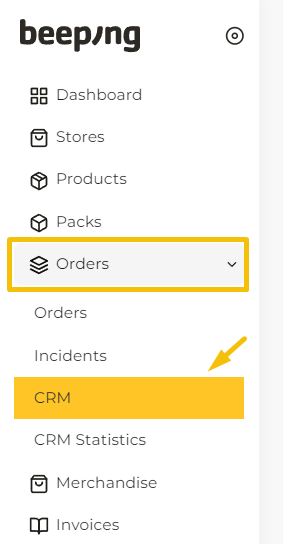
It is accessed from the left panel, under Orders, CRM.
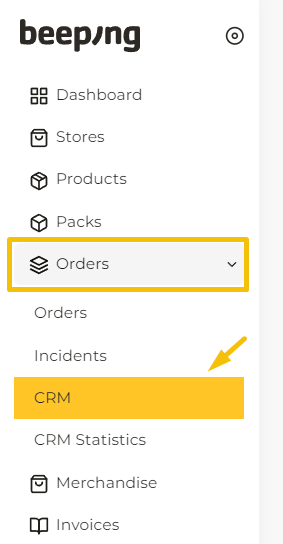
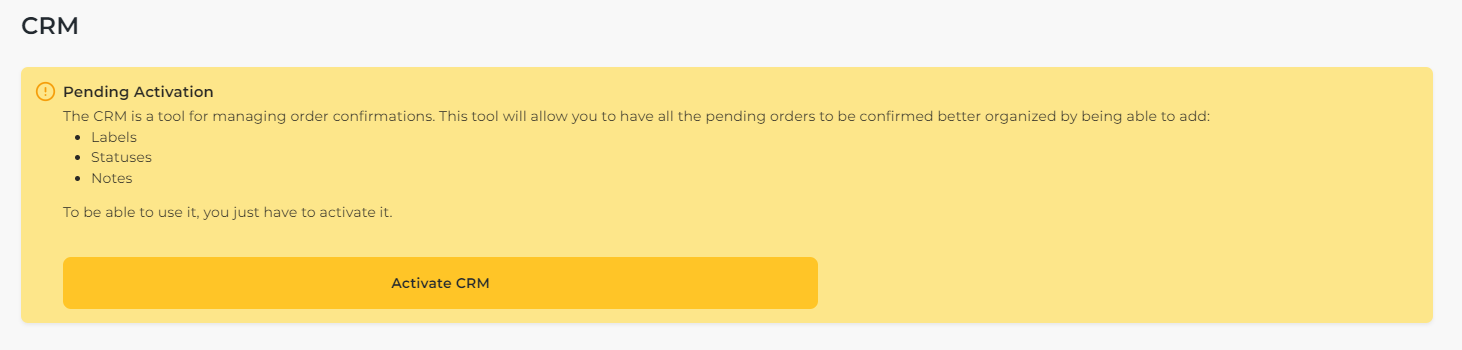
To be able to use this tool, you only have to activate it. This will appear only the first time you enter.
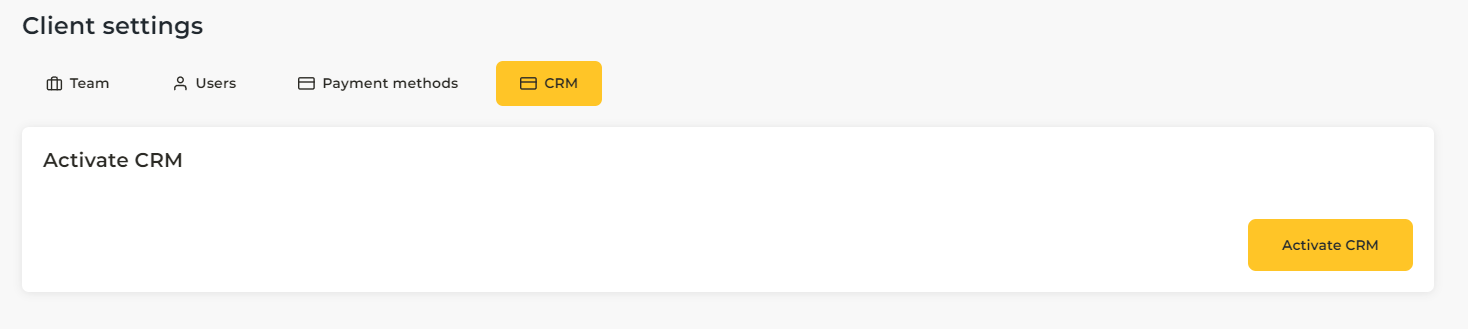
When you click on the button, a new window will appear where you will have to click on "Activate CRM".
When you activate it, you will see three basic states that an order can show:
-
Pending
-
Won
-
Missing
How to create states
In addition to the default states, you will be able to create new custom states to organize your orders according to your needs (such as "Second call", "Day 1" or "WhatsApp sent", for example).
We recommend that the states are as simplified as possible, just to identify the current state of the order. Then you can use the Tags option to add more detailed information about the order.
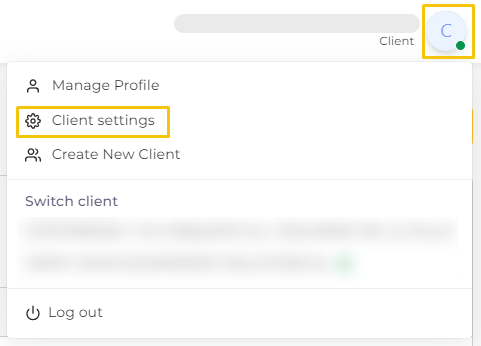
In order to create states you have to log in to your user and click on Client Settings.
In the CRM section, click on "Create new State".
You can also rename states, as well as delete them (if you do not have any orders within that state).
How to work with the CRM
In order to be able to set different states and tags on what stage of the process each order is in, you must access the left panel, under Orders, to CRM:
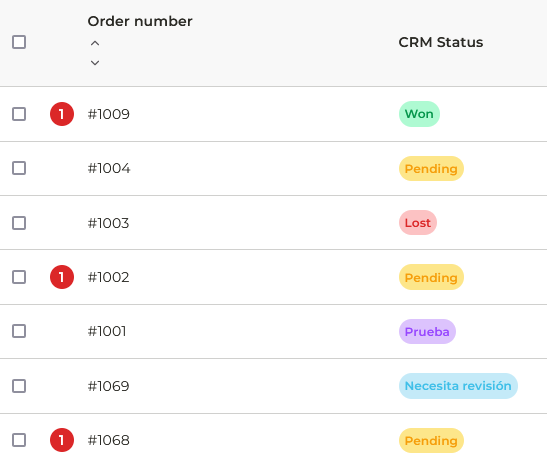
Here you can see all orders that are in a status. For example, all pending orders.
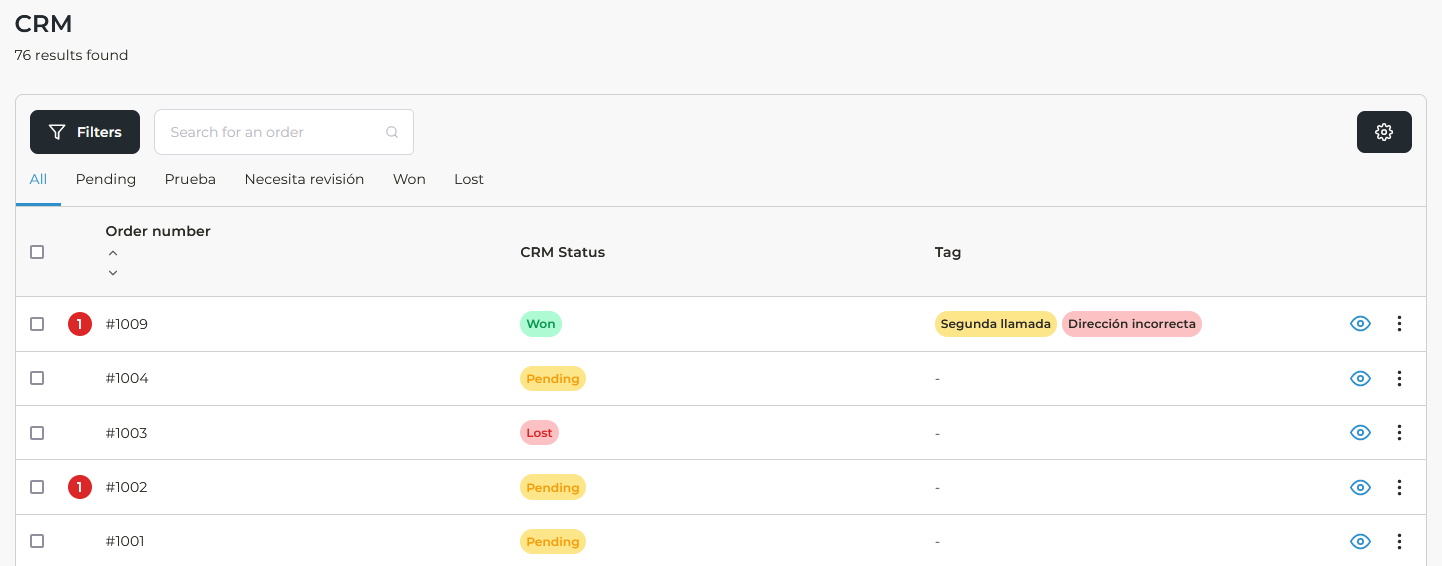
For each order you can change the status or add tags. In them you will find a menu with three dots.
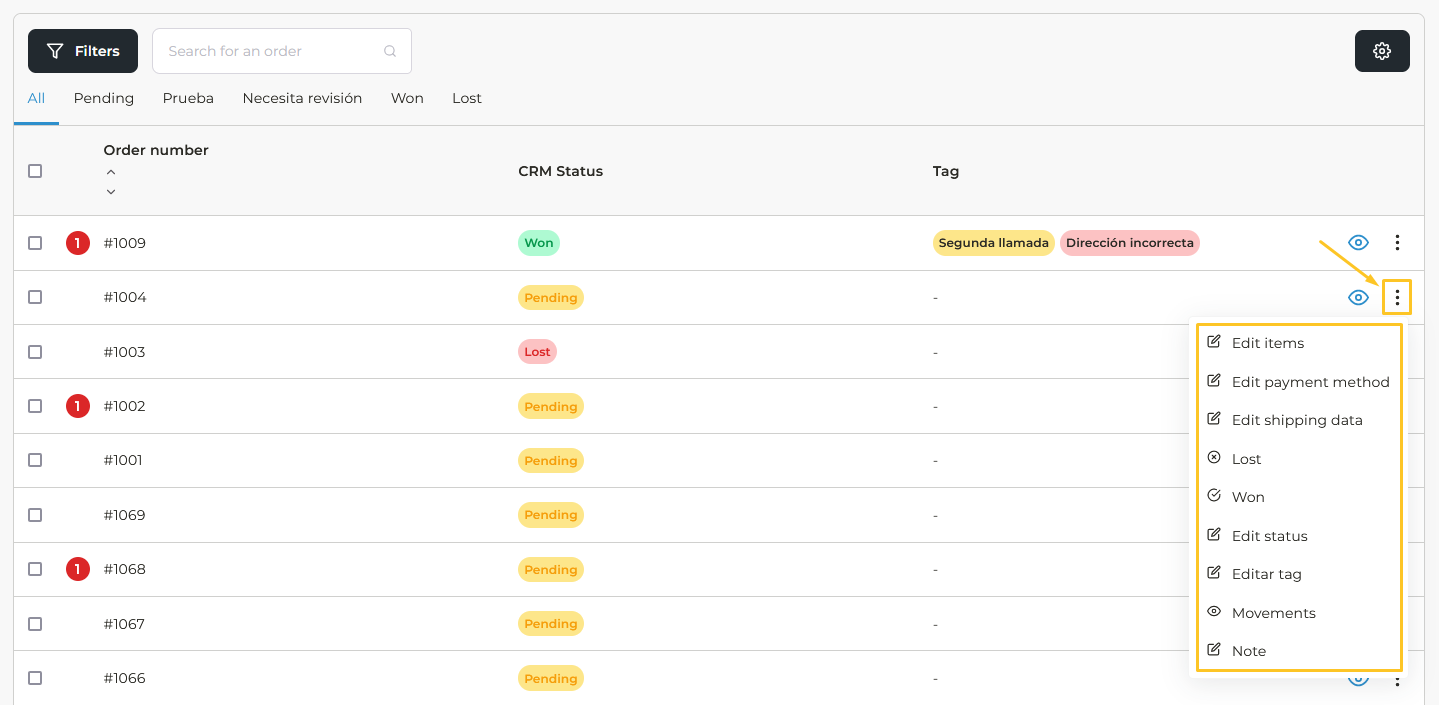
In this dropdown you can edit different data:
-
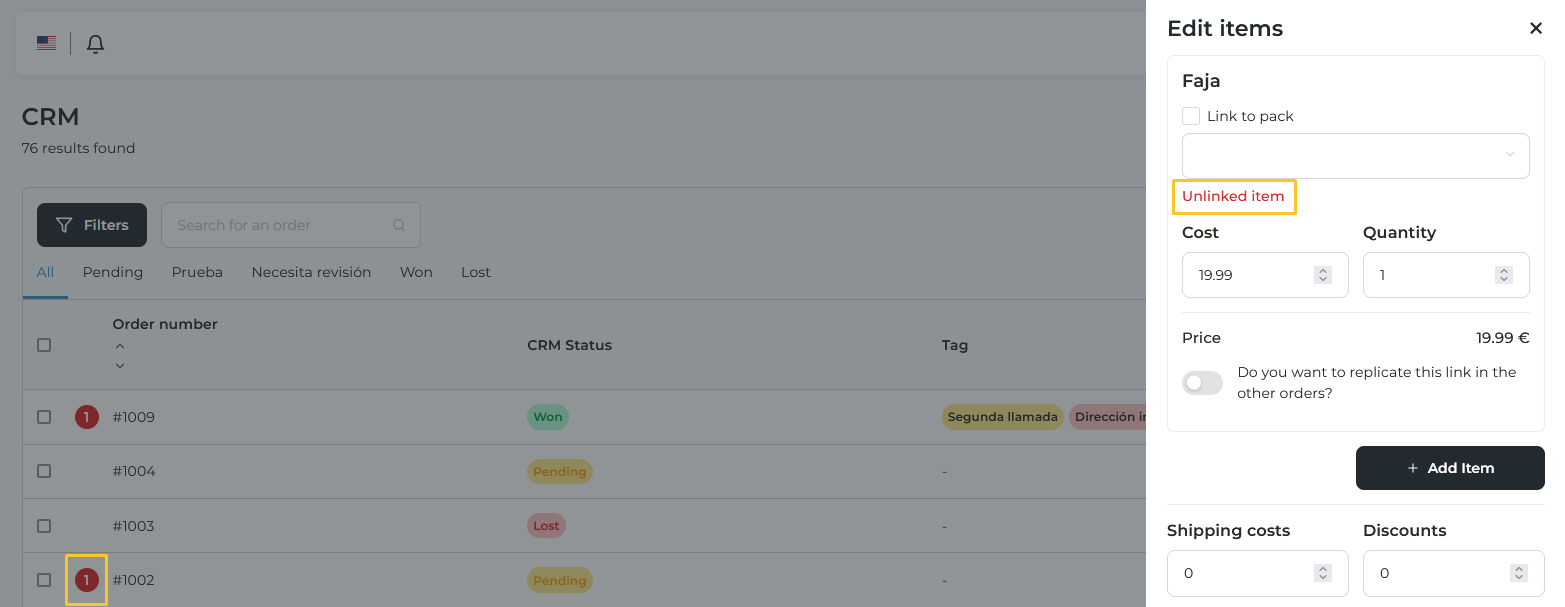
Edit items, payment method and shipping data. You can do this directly from this section because the errors will pop up in this window as well, which allows you to manage everything in the same screen without having to go to the orders section.
-
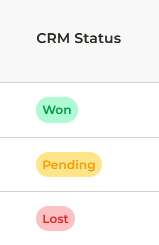
Lost or Won. By selecting one of these two, the order will change from Pending to the status you have selected. Won is like confirming the order, and Lost is like cancelling it.
-
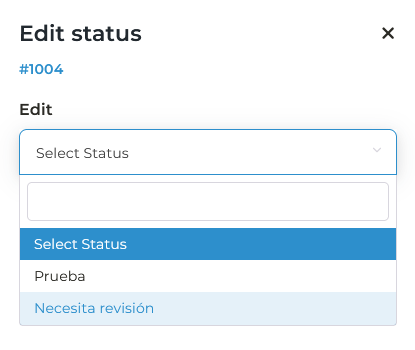
Edit status. From here you will be able to change your order to one of the statuses you have created (your customized statuses).
-
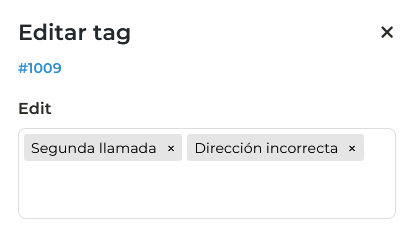
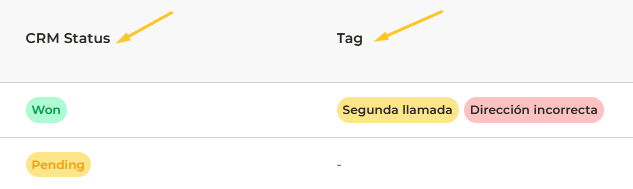
Edit tag. You can create or delete identifying tags for your orders. For example, "wrong address" or "out of stock".
-
Movements. You will see all the changes that have been made to that order.
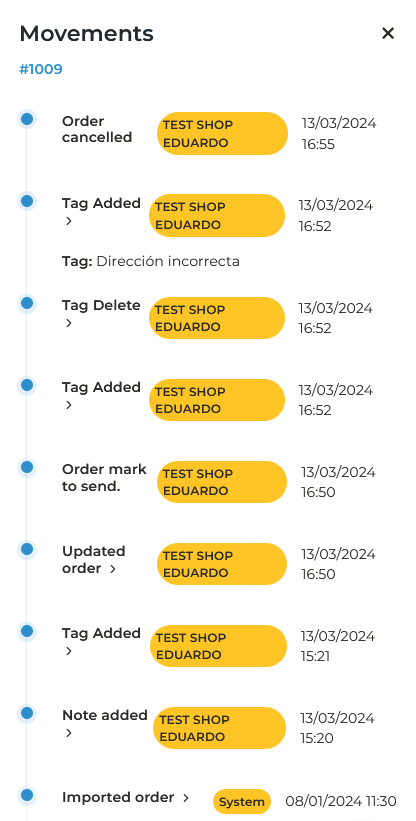
- Note: You can add notes to the order, for example "Call on the 16th". To see them, you have to access to the Movements (previous point).
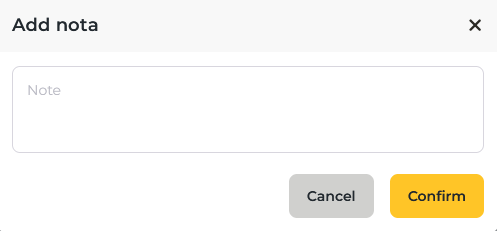
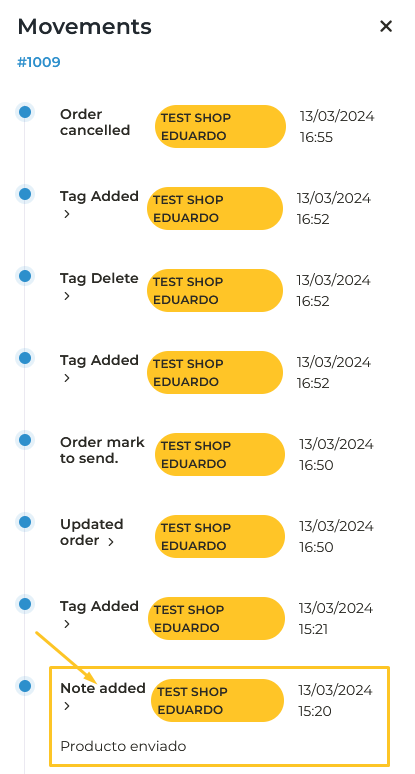
Note that an order can only have one status, but it can have several tags. The status is the point at which it is, and the tags serve to give you information about the order.
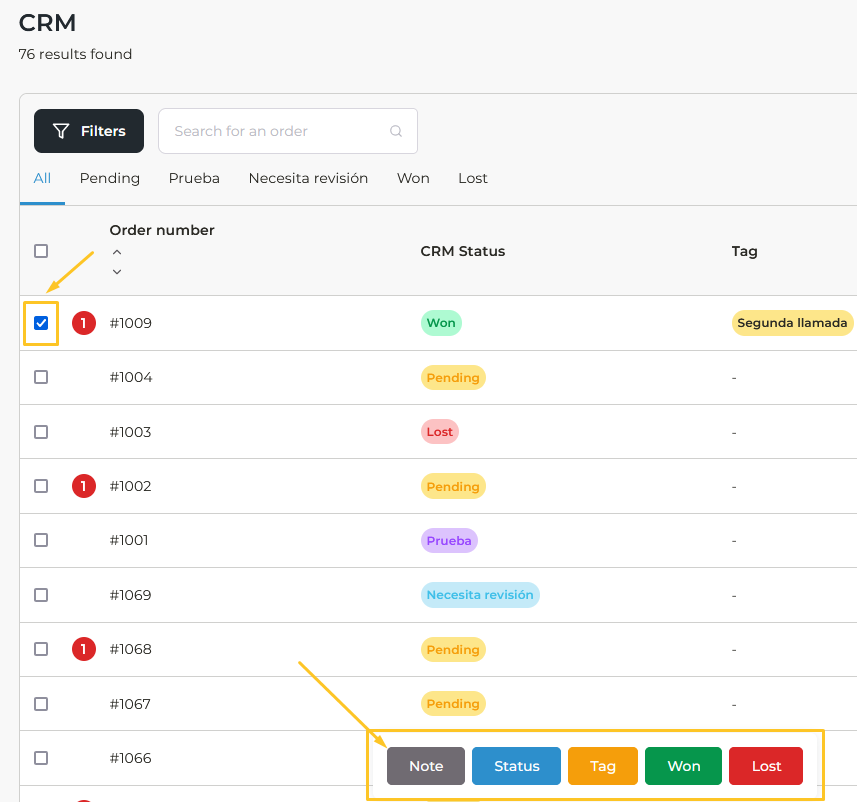
You can also modify statuses and tags by selecting the orders you want, to work in bulk. When you select you will see the following menu below where you can change the information you want:
How to filter by status
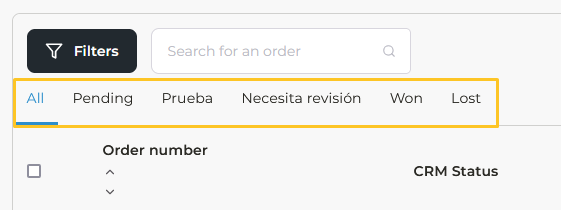
At the top left of the CRM table, you will find all the statuses available to you, both those generated by default and the custom ones you have created. To filter orders according to their status, you can click on each status to display only the orders with that status.
Other available filters
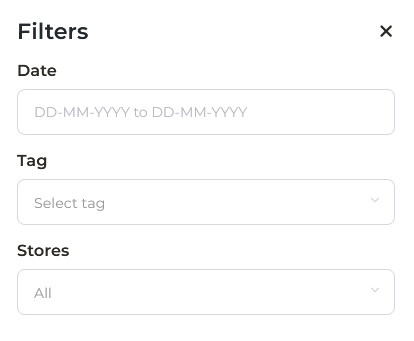
In addition to status, you can also use the Filters to filter your orders by date, tag or store.
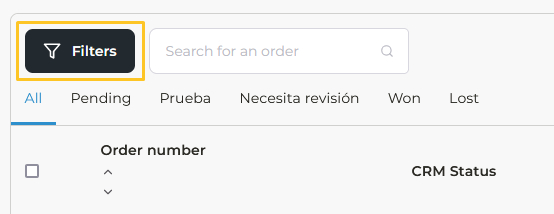
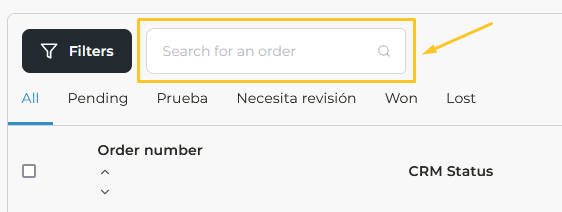
You can also search for an order directly through the browser located right next to the filters button.
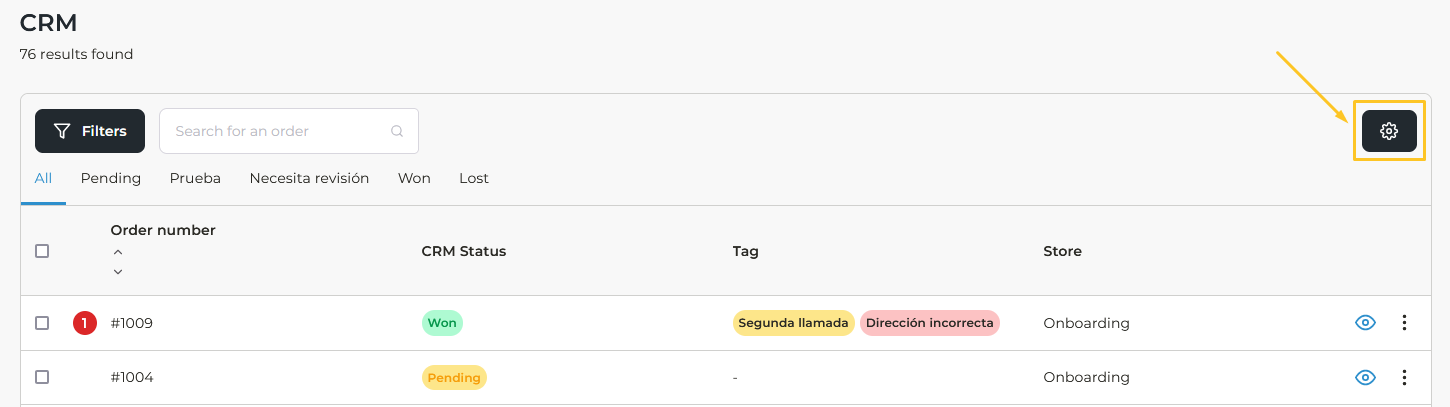
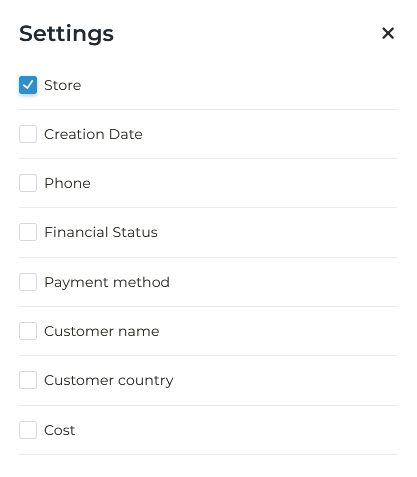
On the other hand, you can configure the CRM columns from the gear icon at the top right to organize them according to the data you want to appear on each order.
CRM Statistics
From this section you will be able to have a better control of the users who are in charge of managing the orders of your account.
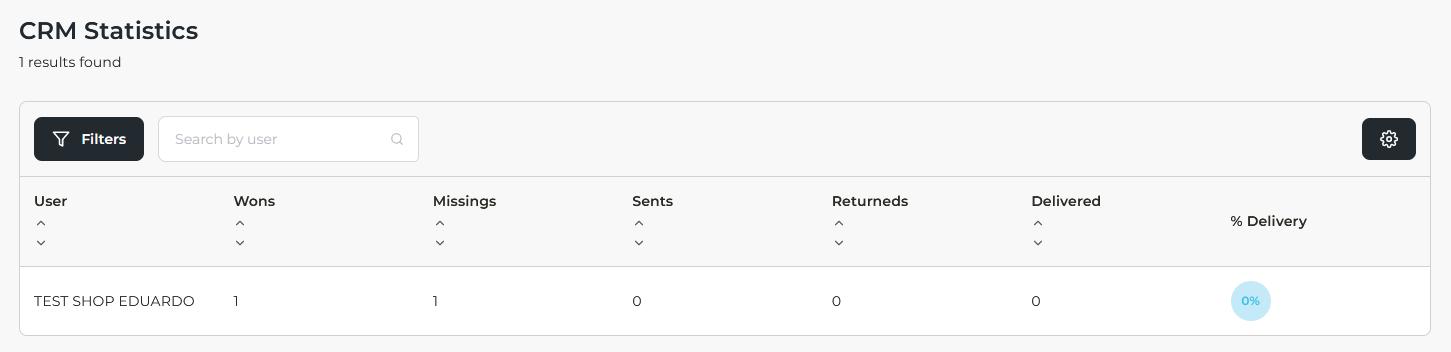
Here you will see different statistics per user, such as the number of orders won, lost, sent, returned and delivered, as well as the delivery percentage of the assistant.

You can filter the data displayed by date, stores or products.

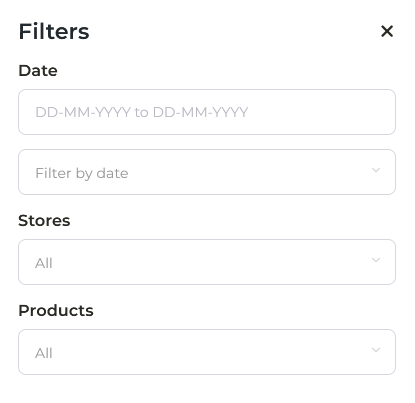
And you can search for a specific user through the browser.

You can also configure the columns to add data such as store or products.